Aelius Code

One OpenAI-compatible endpoint that turns your editor into an agent running on Aelius. Point Cline, Continue, Roo Code, opencode or Qwen Code at it, paste a key, and the model reads and edits your repository the way it reads a chat. Free with any account.

New to this? Getting a key and Qwen Code, step by step have a screenshot of every click.

This is one of two Aelius APIs, and it is the free one. Aelius Code is an OpenAI-compatible endpoint for editors and coding agents: keys start aelius_code_, cost nothing with any account, and are issued the moment you ask for one.

The other is the general API — Aelius’s own JSON API at /api/ext/v1, for vision and schema-checked JSON called from software you are writing. Its keys start ael_sk_, and access to it is requested and reviewed by a person. You do not need it to use your editor, and nothing on this page depends on it.

Overview

BASEhttps://code.aeliusai.com/v1
Model
qwen3.8-27b
Context window
262,144 tokens
Protocol
OpenAI Chat Completions, streaming and non-streaming
Auth
Authorization: Bearer aelius_code_…
Price
Free with any account

It is the same model the chat product runs on, reached without the chat product's system prompt or behaviour, and with the entire context window rather than the slice a web conversation gets. That is the point of it: an agent is only useful on a real codebase if the codebase fits in the window.

Getting a key

Keys are free with any accountFree and are created and revoked in Settings. Nothing is reviewed and there is no waiting: that is the general API, which is a different product.

It takes about a minute. Open Aelius and sign in first: a guest session cannot hold a key, so sign up if you have not.

  1. Open Settings

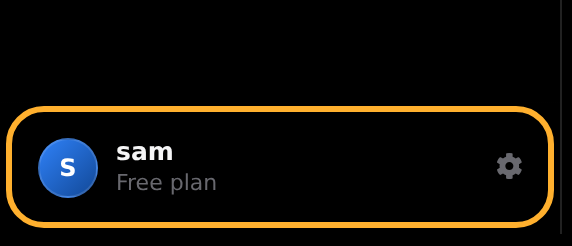
    Click your name at the bottom of the sidebar. On a phone the sidebar is behind the menu button at the top left.

    The bottom of the Aelius sidebar, with the account button circled
    The circled row is the account button. The cog on the right of it opens the same sheet.
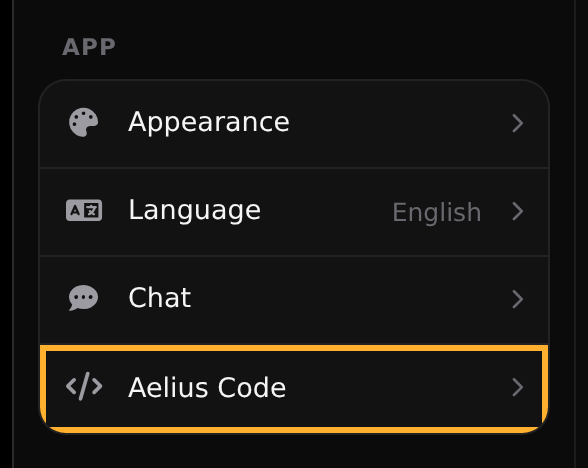
  2. Choose Aelius Code

    Settings opens on Account. Aelius Code is the third entry in the menu down the left.

    The Aelius settings sheet with Aelius Code circled in the left-hand menu
    Aelius Code, third in the settings menu.
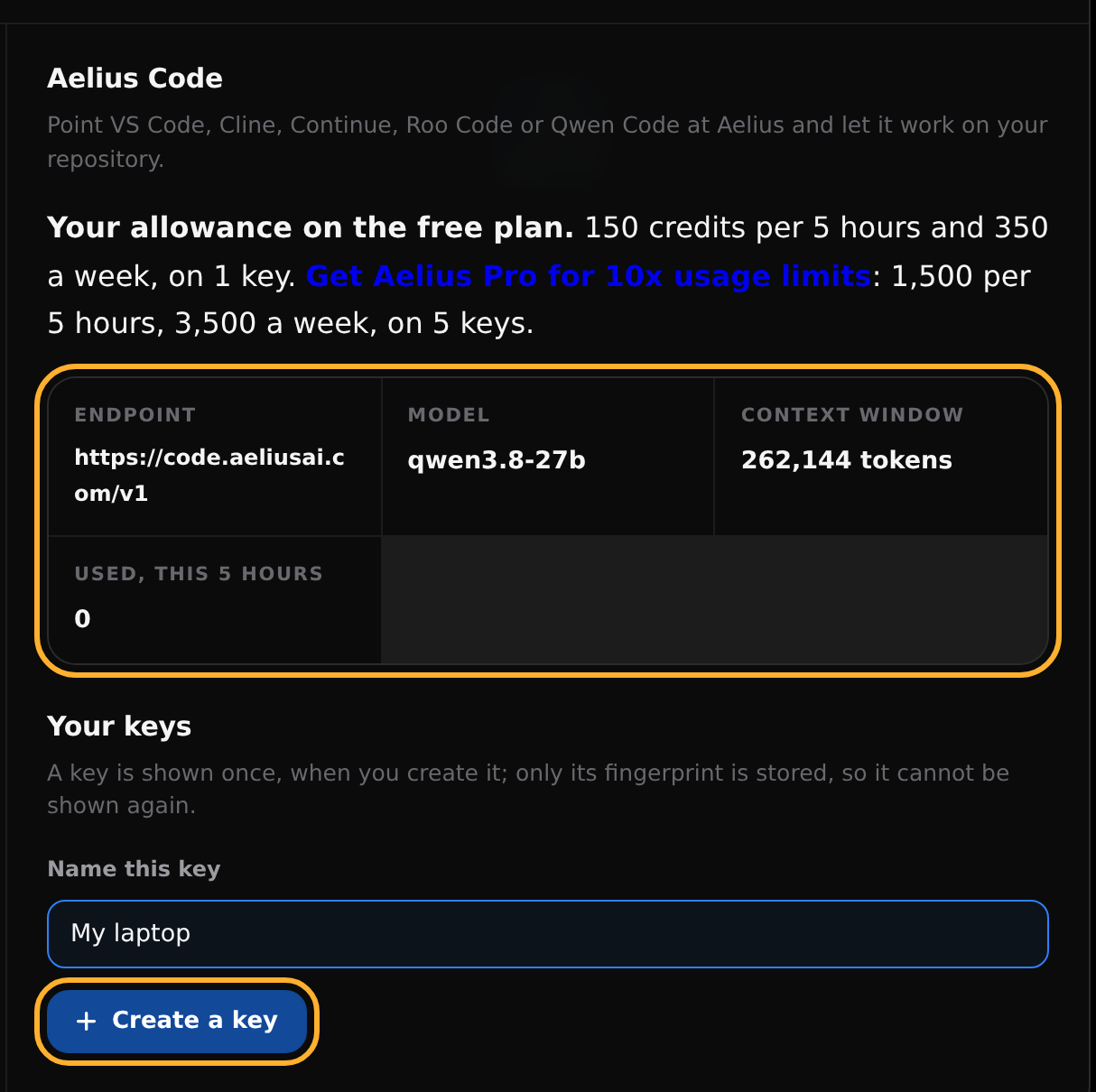
  3. Name the key and create it

    The top of the panel holds the three values your editor will ask for. Name the key after the machine or editor it is for, then click Create a key.

    The Aelius Code settings panel, with the endpoint facts and the Create a key button circled
    Top ring: the three values to copy. Bottom ring: the button. The line above them is your current allowance.
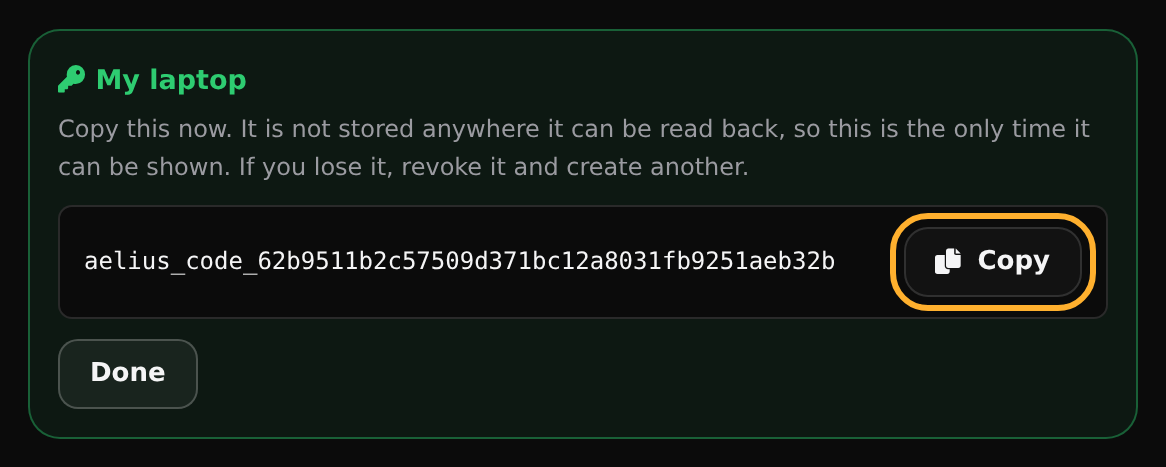
  4. Copy it now

    The key appears once, with a Copy button. Put it somewhere you can reach before configuring an editor: this is the only time it can be read.

    A newly created key shown once, with the Copy button circled
    The Copy button. Pressing Done clears it from the screen for good.

The key is shown once. Only its SHA-256 is stored, so nobody, including us, can read it back to you afterwards. If you lose it, revoke it and create another; that takes about five seconds and is the intended recovery path, not a punishment.

A key looks like aelius_code_ followed by 40 hexadecimal characters. Treat it like a password: it can spend your allowance and it is attached to your account. Revoking one from Settings stops it working within a minute.

The three values every editor asks for

Whatever you are setting up will want these. They are also printed at the top of the Settings panel.

Base URLhttps://code.aeliusai.com/v1
Modelqwen3.8-27b
Context window262144
API keyaelius_code_… (yours, from step 4)

Next: Qwen Code, step by step shows every click. If you know your way around, Cline, Continue and Roo Code are three fields each, and opencode is one config file.

Qwen Code, step by step

Qwen Code is an agent in a VS Code side panel: it reads the folder you have open, writes files and runs commands, against any OpenAI-compatible endpoint. Eleven steps, a screenshot of each, and the thing to click circled in amber.

Before you start you need VS Code, the desktop application rather than the browser build, because the extension works on files on your disk. You also need a key: get one first if you have not, and have it on your clipboard before step 9, because the prompt that asks for it closes the moment you click somewhere else.

Install the extension

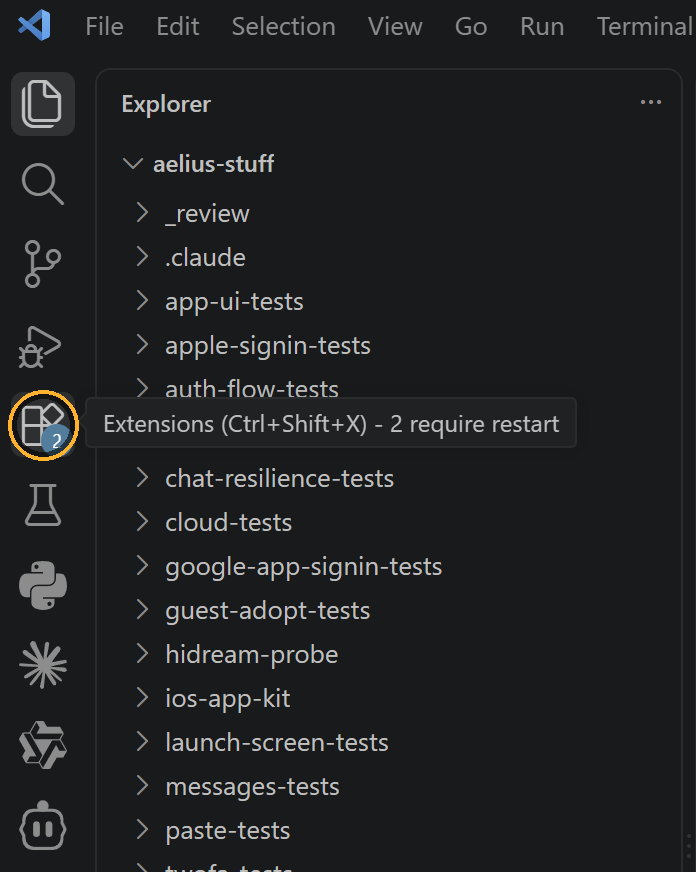
  1. Open the Extensions view

    Click the Extensions icon in the activity bar running down the left edge of the window, or press Ctrl Shift X (Cmd Shift X on a Mac).

    The VS Code activity bar with the Extensions icon circled
    The circled icon is Extensions. The badge on it counts pending updates and has nothing to do with this.
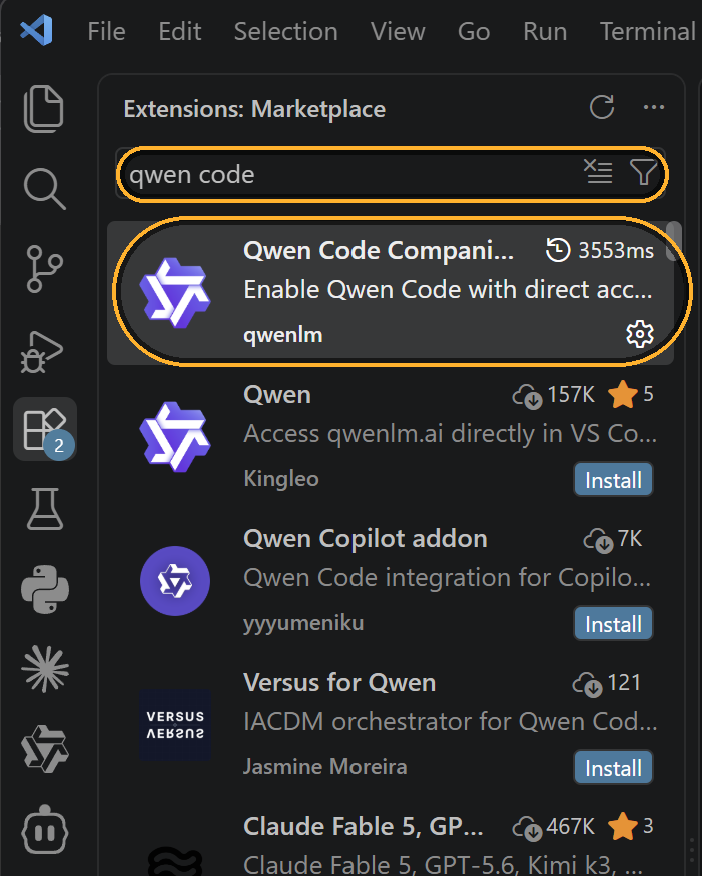
  2. Search for qwen code and find the right one

    Several extensions come back with near-identical names and only one is the agent: Qwen Code Companion, published by qwenlm. Read the publisher line, not the title.

    The one called simply Qwen, by Kingleo, is a wrapper around the qwenlm.ai website: it has nowhere to put a base URL, so it will never reach Aelius. The correct extension's identifier is qwenlm.qwen-code-vscode-ide-companion.

    Marketplace results for qwen code, with the search box and the Qwen Code Companion result circled
    Top ring: the search box. Second ring: the only correct result. Note the publisher, qwenlm.
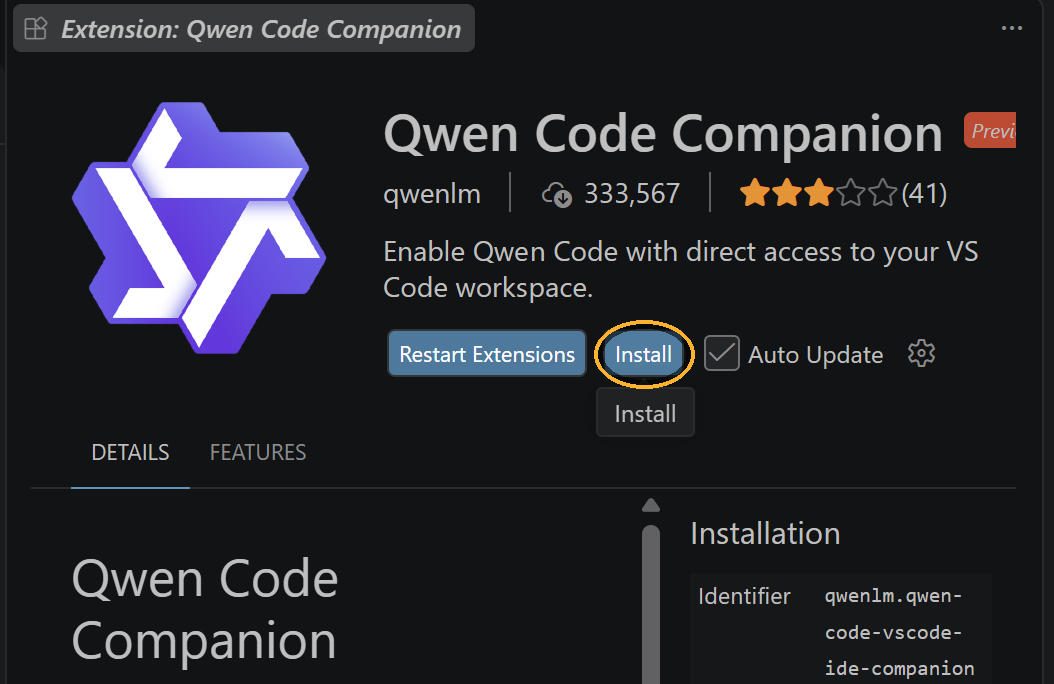
  3. Install it

    Open its page and click Install. The Preview badge is its authors' label for their own release stage.

    The Qwen Code Companion extension page with the Install button circled
    The Install button on the extension page.
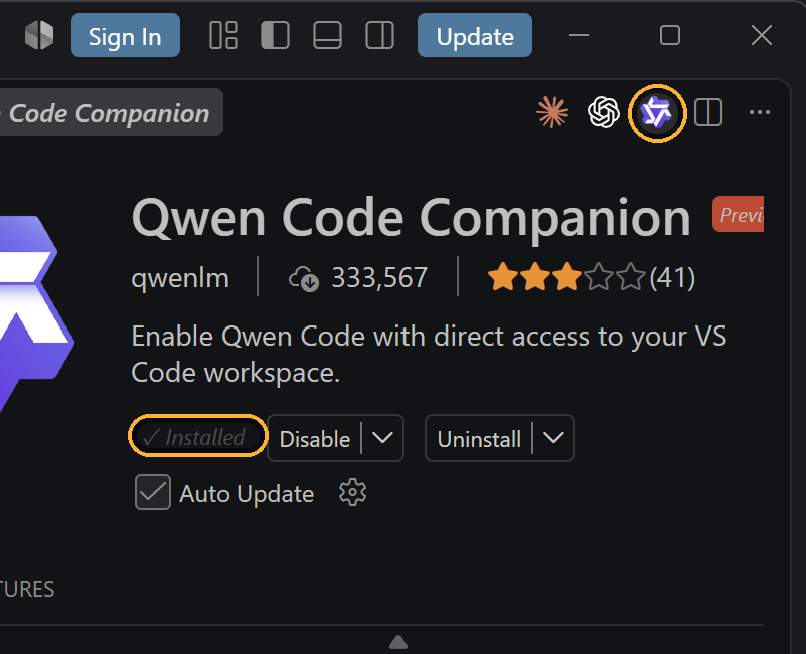
  4. Open the panel

    Install becomes Installed, and a Qwen icon appears in the toolbar at the top right. Click it to open the panel. No icon means the extension has not loaded yet: press Ctrl Shift P and run Developer: Reload Window.

    The installed extension, with the Installed label and the Qwen toolbar icon circled
    Left ring: proof it installed. Right ring: the toolbar icon that opens the panel.

Point it at Aelius

The rest happens in prompts that drop down from the top of the window, one after another. Enter confirms and Esc cancels, and cancelling one abandons the sequence: start again at step 5.

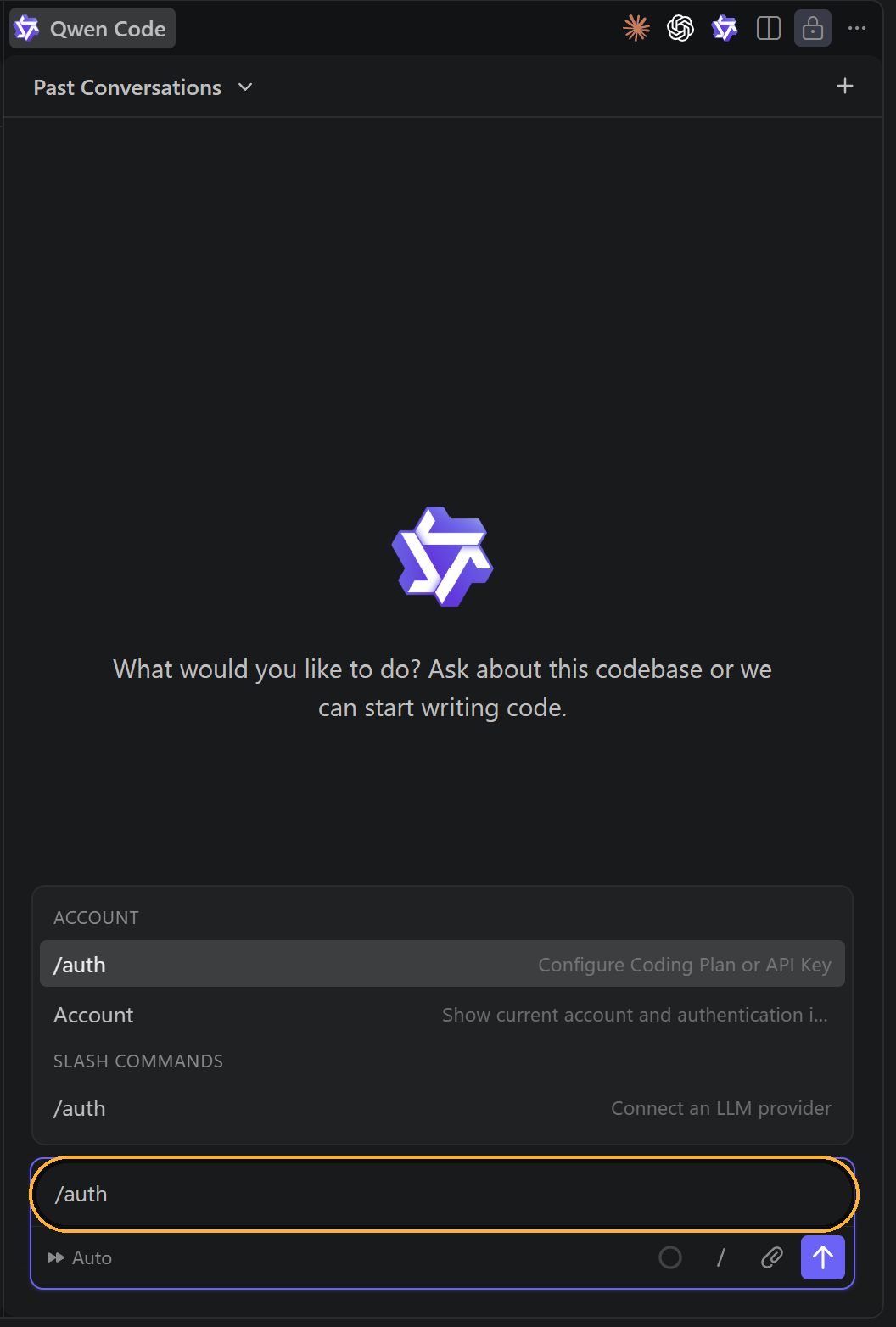
  1. Run /auth

    Type /auth in the panel's message box and press Enter. It is offered twice while you type, under ACCOUNT and under SLASH COMMANDS; either will do.

    The Qwen Code panel with /auth typed into the message box, circled
    /auth typed into the circled message box. This is the only command you need.
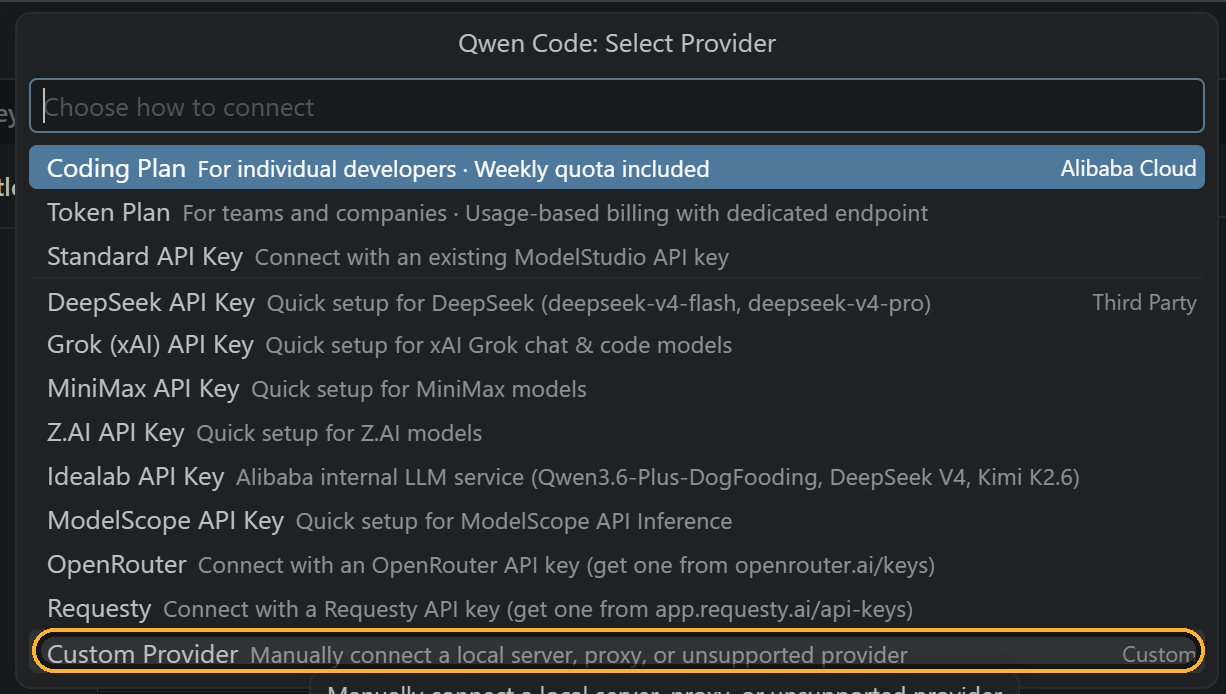
  2. Choose Custom Provider

    Scroll to the bottom of the provider list and pick Custom Provider, the only entry that lets you type a URL of your own. The two at the top are Alibaba Cloud's own paid tiers.

    The Select Provider list with Custom Provider at the bottom circled
    Custom Provider, last in the list. Not Standard API Key, which is Alibaba's ModelStudio.
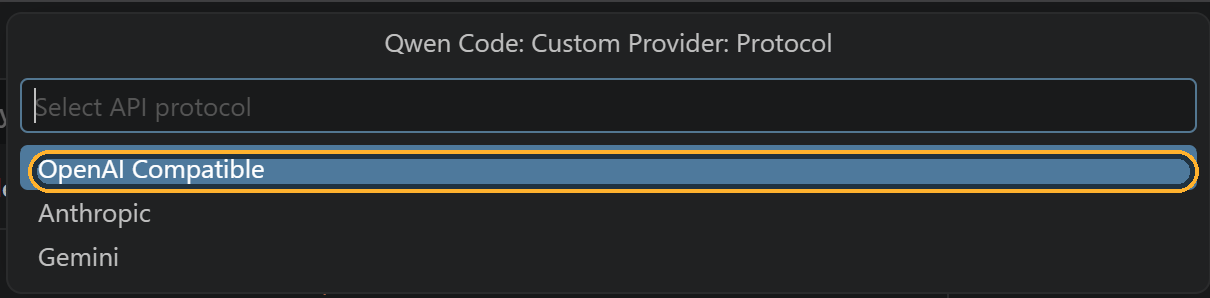
  3. Protocol: OpenAI Compatible

    Take the first one. Anthropic and Gemini are different request formats and fail immediately against this endpoint.

    The protocol prompt with OpenAI Compatible circled
    OpenAI Compatible, the highlighted first row.
  4. Base URL

    Type the endpoint exactly as it appears here:

    https://code.aeliusai.com/v1

    Include the /v1, with no trailing slash. The extension appends /chat/completions itself, so a URL that already ends in /v1/ or /chat/completions gives a 404 that reads convincingly like the server being down.

    The Base URL prompt containing the Aelius Code endpoint, circled
    The circled field holds the whole endpoint, /v1 included.
  5. API key

    Paste your aelius_code_ key. The field is masked, so paste rather than type and watch for a trailing space: it is the usual cause of a 401 invalid_api_key on the first message.

    The API key prompt with the masked key field circled
    Masked on purpose. If you have lost the key, revoke it in Settings and make another; it cannot be read back.
  6. Model

    The endpoint serves exactly one model. Type its name:

    qwen3.8-27b

    The prompt takes a comma-separated list, so one entry and no comma is right. Spell it exactly: anything else is a 404, not a correction.

    The model IDs prompt containing the Aelius model name, circled
    One model, named exactly.
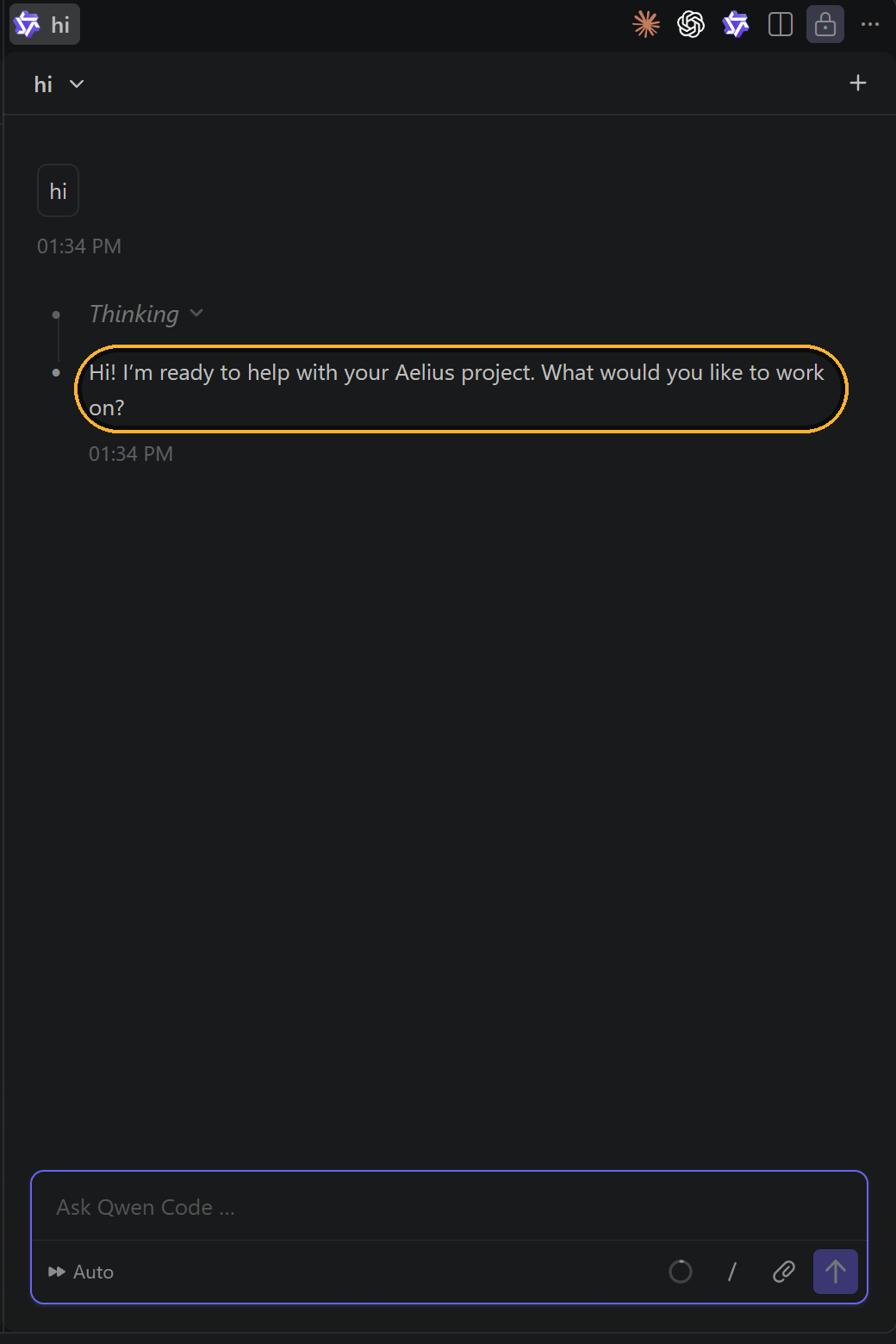
  7. Say hello

    That is the setup. Send anything. A Thinking block appears first, because reasoning is on for this model, and the answer follows underneath.

    The Qwen Code panel answering a message, with the reply circled
    Aelius answering inside VS Code. The circled reply came from the same model the website runs on.

Two settings to change before you do real work

It works now, but two defaults will bite on a real repository.

1. Tell it the real context window

Qwen Code will report a 1,000k context window. The real one is 262,144. It never asks the server. It matches the model name against a table it ships with, and anything called qwen3-… gets Qwen's own 1M figure. Uncorrected, it builds prompts four times larger than this endpoint accepts, and the turn fails after it has already read half your repository.

Fix it in ~/.qwen/settings.json, which on Windows is %USERPROFILE%\.qwen\settings.json. It goes on the provider entry, beside the baseUrl you set above:

{
  "modelProviders": {
    "openai": [
      {
        "id": "qwen3.8-27b",
        "baseUrl": "https://code.aeliusai.com/v1",
        "generationConfig": {
          "contextWindowSize": 262144
        }
      }
    ]
  }
}

It must be on the provider entry, not under a top-level model key. Qwen Code 0.21 reads model.generationConfig only when no modelProviders entry matches the model you are using, and silently ignores it when one does. It prints contextWindowSize is ignored for provider model … on startup when you get this wrong, which is easy to scroll past.

Restart VS Code afterwards. The same file applies from a terminal too. Its auto-compaction threshold is a fraction of whatever figure it believes, so this is also what makes it compact at the right moment.

2. Turn off, or raise, any request timeout

An agent turn on a real repository can run for minutes, with the connection open and quiet while it does. An extension that gives up on it turns a slow answer into an error, which is the most common reason people report that Aelius Code has stopped working.

When it does not work

What you seeWhat it usually is
No Qwen icon after installing The window has not reloaded. Ctrl Shift P, then Developer: Reload Window.
Nowhere to enter a base URL The wrong extension, or the wrong provider. It must be Qwen Code Companion by qwenlm, and Custom Provider at step 6.
401 invalid_api_key A space copied along with the key, or a key that has been revoked. Run /auth again and paste it once more.
404, or an empty model list A trailing slash on the base URL, or the model name misspelled at step 10. It is qwen3.8-27b.
A long turn ends in a network error A client-side timeout. Raise it or turn it off, as above.
The prompt is rejected as too long The 1,000k figure. Set contextWindowSize as above.
429 quota_exceeded The allowance on this key. Retry-After carries the real wait, and Settings shows both windows. See Limits.
503 verification_unavailable Your key is fine; the account service is briefly unreachable. Wait a few seconds. Do not regenerate the key.

Qwen Code in a terminal

The same agent runs in a terminal, where it reads the standard OpenAI environment variables. Three exports are the whole setup:

export OPENAI_BASE_URL="https://code.aeliusai.com/v1"
export OPENAI_API_KEY="aelius_code_YOUR_KEY_HERE"
export OPENAI_MODEL="qwen3.8-27b"

qwen

In PowerShell these are $env:OPENAI_BASE_URL and so on. The ~/.qwen/settings.json fix applies here too, and matters more: a terminal session runs longer and fills the window further before anything notices.

The same variables work for anything else that speaks the OpenAI protocol.

Cline

Three fields on one form, and the quickest of these to set up.

Same three values. The Qwen Code walkthrough shows each being entered.

  1. Install Cline from the VS Code marketplace.
  2. Open its settings and set API Provider to OpenAI Compatible.
  3. Fill in the three fields:
Base URL
https://code.aeliusai.com/v1
API Key
aelius_code_…
Model ID
qwen3.8-27b

Then turn on Enable streaming if it is not already on, and set the context window to 262,144 so Cline does not truncate prompts it did not need to.

Continue

No form and no prompts to photograph. Same three values.

Continue is configured from a file rather than a form. Open ~/.continue/config.yaml and add a model block:

models:
  - name: Aelius
    provider: openai
    model: qwen3.8-27b
    apiBase: https://code.aeliusai.com/v1
    apiKey: aelius_code_YOUR_KEY_HERE
    defaultCompletionOptions:
      contextLength: 262144
    roles:
      - chat
      - edit
      - apply

Do not add autocomplete to roles. Inline completion fires on every keystroke pause and would spend your whole daily request allowance in an afternoon, on suggestions you mostly did not read. Aelius Code is built for agent turns, not for tab-completion.

Roo Code

Roo Code is a fork of Cline and is configured the same way: choose the OpenAI Compatible provider, then set Base URL to https://code.aeliusai.com/v1, the API key to your aelius_code_… key, and the model to qwen3.8-27b. Leave "Use Azure" off.

Same shape as Cline. The Qwen Code walkthrough covers the traps they share: a trailing slash on the base URL, a space copied with the key.

opencode

opencode comes in three interfaces — the terminal TUI, the desktop app, and opencode web in a browser. All three read the same config file, and none of them has a form for a base URL. opencode will not find Aelius on its own either: it knows the providers listed at models.dev, and this endpoint is not one of them. You declare it yourself, once, in a file. That is the whole reason this one feels harder than the rest. Once the file exists it is the same three values as everywhere else.

Using the desktop app? Do this file first anyway, then see the desktop app and the connect dialog for what its Custom option does and does not cover.

The provider id is a name you make up. This is the field that stops people, because opencode asks for it as though there were a correct answer somewhere and there is not. It is not issued by Aelius, it is not your key, and it is not looked up anywhere — it is just the label this config uses for this endpoint, and it becomes the part before the slash when you pick a model.

Use aelius. Lower case, no spaces. Then the model you select is aelius/qwen3.8-27b, and the only rule is that the two spellings match: the key under provider and the prefix in model are the same word. Call it banana and, as long as you also write banana/qwen3.8-27b, it works identically.

  1. Install opencode, if you have not:
    curl -fsSL https://opencode.ai/install | bash
  2. Put your key in the environment rather than in the file, so the file is safe to keep in a dotfiles repo:
    export AELIUS_CODE_API_KEY="aelius_code_YOUR_KEY_HERE"
    Add that line to ~/.zshrc or ~/.bashrc so it survives a new terminal. In PowerShell it is $env:AELIUS_CODE_API_KEY.
  3. Create ~/.config/opencode/opencode.json. The directory will not exist yet on a fresh install — mkdir -p ~/.config/opencode first. Paste this in whole; the three places aelius appears are the provider id, and nothing in here needs changing except your key:
    {
      "$schema": "https://opencode.ai/config.json",
      "provider": {
        "aelius": {
          "npm": "@ai-sdk/openai-compatible",
          "name": "Aelius",
          "options": {
            "baseURL": "https://code.aeliusai.com/v1",
            "apiKey": "{env:AELIUS_CODE_API_KEY}"
          },
          "models": {
            "qwen3.8-27b": {
              "name": "Aelius Code",
              "limit": {
                "context": 262144,
                "output": 32768
              }
            }
          }
        }
      },
      "model": "aelius/qwen3.8-27b",
      "small_model": "aelius/qwen3.8-27b"
    }
  4. Confirm opencode can see it before you open the editor:
    opencode models | grep aelius
    You want one line back: aelius/qwen3.8-27b. Nothing back means the config file is not where opencode is looking, or is not valid JSON — a trailing comma is the usual culprit, and opencode skips a file it cannot parse without saying so.
  5. Run opencode. It is already on the right model because of the model key; /models inside the TUI switches between them if you configure more later.

What each part of that file is doing

npm
@ai-sdk/openai-compatible is the driver that speaks plain OpenAI HTTP. opencode downloads it on first launch, so that launch needs a network and a working Node. Every other value is yours.
aelius
The provider id — a label, chosen by you, not given to you. It has to match the prefix in "model": "aelius/…" exactly; if you rename one, rename both.
baseURL
https://code.aeliusai.com/v1 — ending at /v1, with no trailing slash and no /chat/completions. opencode appends the path itself.
limit.context
opencode never asks the server how big the window is, so this figure is the only one it has. It is what decides when a session compacts. Setting it too high is the failure described under Limits: prompts get built larger than this endpoint will accept, after the agent has already read half your repository.
small_model
opencode runs a second, cheaper model for session titles and summaries. Leave it unset and it goes looking for one somewhere else, which with Aelius as your only provider means an error on the first message. Pointing it at the same model is correct here.

A project can override this. An opencode.json in a repository root wins over the global file. That is useful, but keep the key out of it — {env:AELIUS_CODE_API_KEY} works there too, and a literal aelius_code_… in a committed file is a key you will be revoking later.

The desktop app, and the connect dialog

The desktop app and the TUI share one credential store and one config file, so nothing above changes when you use the GUI. What the GUI adds is a dialog for the key: connect provider, then the entry at the bottom of the list called Custom in the desktop app and Other in the TUI's /connect. It is worth knowing exactly what that dialog covers before you rely on it.

The dialog asks for a provider id and an API key. That is all it asks for, and that is all it saves. There is no base URL field in it and no model field, because it only writes credentials — to ~/.local/share/opencode/auth.json. Nothing in it tells opencode that https://code.aeliusai.com/v1 exists.

So filling the dialog in on its own leaves you with a key for a provider that has no address, which is the state most people get stuck in. The config file is not optional in the GUI. The dialog is an alternative to the apiKey line inside it, not an alternative to the file.

Which makes the Provider ID box the same invented label as before, and the one place the two halves have to meet:

  1. Write the config file first

    ~/.config/opencode/opencode.json, exactly as above. Do this before you open the app: the dialog in the next step has nowhere to put a base URL, so until this file exists there is nothing for the app to connect to.

  2. Open the connect provider dialog

    In the desktop app, the entry you want is at the bottom of the provider list and is called Custom. In the TUI the same dialog is /connect and the entry is called Other; from a plain terminal it is opencode auth login, also Other.

  3. Provider ID: aelius

    Character for character the key you used under provider in the file. This is the join, and the only thing this dialog is really for. Type Aelius or aelius-code here and the model still appears in the picker, then returns 401 on your first message, because the key was filed under a provider that does not exist.

  4. API key

    Your aelius_code_… key. The dialog saves it to ~/.local/share/opencode/auth.json and saves nothing else.

  5. Take the key back out of the config

    Now that opencode holds it, delete the "apiKey" line from opencode.json, and the AELIUS_CODE_API_KEY export if you set one. Mind the trailing comma on the line above it, or the file stops parsing and opencode goes back to not knowing about Aelius at all.

  6. Pick the model

    It is listed as aelius/qwen3.8-27b — the provider id, then the model name from the config file. Selecting it is the last step; the first message will tell you whether the two halves met.

No “Custom” entry in your connect dialog? The desktop app only gained it in a January 2026 release. Update the app, or skip the dialog entirely and keep the key in the config file the way the steps above set it up — that path works on every version and every interface.

Where opencode keeps its files

WhatmacOS and LinuxWindows
Config ~/.config/opencode/opencode.json %USERPROFILE%\.config\opencode\opencode.json
Keys from the dialog ~/.local/share/opencode/auth.json %USERPROFILE%\.local\share\opencode\auth.json
Logs ~/.local/share/opencode/log/ %USERPROFILE%\.local\share\opencode\log

opencode.jsonc is accepted in place of opencode.json if you want comments in it. Very old installs keep the config in ~/.local/share/opencode/ instead; if a file is there, that is the one being read, and it is worth moving to the path above.

When it does not work

What you seeWhat it usually is
opencode models lists nothing for Aelius The config is not being read. Check the path, and check the JSON parses: python3 -m json.tool ~/.config/opencode/opencode.json. A project opencode.json in the directory you launched from can also be shadowing it.
Filled in the desktop app's Custom dialog, and Aelius still is not in the model picker The dialog saves a key and nothing else. Without the config file there is no base URL and no model for it to show. See above.
Provider aelius not found The id under provider and the prefix in model disagree.
401 on the first message The environment variable is not set in the shell that launched opencode — echo $AELIUS_CODE_API_KEY in that same terminal. If you used the connect dialog instead, the provider id you typed there does not match the one in the config file. A newline copied with the key looks identical and fails the same way.
404, or an HTML error page in the log A trailing slash on baseURL, or /chat/completions left on the end of it.
Works, then fails partway through a long session limit.context does not match 262,144, so it compacted too late. See Limits.
Times out on a long turn An agent turn on a real repository runs for minutes with the connection open and quiet. Raise any timeout you have set rather than reading it as an outage.

Anything else

If your tool accepts a base URL, a key and a model name, it will work, and the three values above are all it needs. A plain curl to prove the endpoint is reachable and your key is good:

curl https://code.aeliusai.com/v1/chat/completions \
  -H "Authorization: Bearer aelius_code_YOUR_KEY_HERE" \
  -H "Content-Type: application/json" \
  -d '{
    "model": "qwen3.8-27b",
    "messages": [{"role": "user", "content": "Reply with the word ready."}],
    "stream": false
  }'

A 401 means the key is wrong or revoked; anything else means the key is fine and you are reading a real answer. See Errors.

Endpoints

POSThttps://code.aeliusai.com/v1/chat/completions

The one you will use. Standard OpenAI Chat Completions: messages, tools, tool_choice, temperature, top_p, max_tokens, stream. Reasoning is enabled on this model and arrives in a reasoning_content delta, which every extension listed above already understands.

POSThttps://code.aeliusai.com/v1/completions

Legacy text completion, supported for tools that still need it. Prefer /chat/completions.

GEThttps://code.aeliusai.com/v1/models

Returns the one model served, with its context length. Requires a key. Many extensions call this to populate a dropdown before their first real request, which is why a bad key often shows up as an empty model list rather than as an error.

Limits

Every limit below is per key. The model, the context window and the protocol do not vary: they are the same on every account and every request.

LimitYour account What happens at the ceiling
Credits per 5 hours, per key 200 429 quota_exceeded, with the exact wait in Retry-After
Credits per week, per key 800 429 quota_exceeded, same
Requests per minute, per key 40 429, retry after 10s
Concurrent turns, per key 2 429, retry after 5s
Requests per 5 hours, per key 245 429 quota_exceeded; a backstop against a runaway loop, not a limit normal work meets
Active keys per account 1 Revoke one before creating another
Request body 64 MB 413

A guest session is a cookie, so it cannot hold a key that stays revocable afterwards. Signing up is free and takes a moment.

The context window, and clients that guess it

One request may carry 262,144 tokens, prompt and reply together, on every plan. The endpoint publishes that figure on GET /v1/models — under context_length, context_window, max_model_len, max_context_length and max_input_tokens, because there is no agreed name for it — and on GET /props as n_ctx, for tools that speak the llama.cpp dialect.

Some clients never look. They keep a table of model names and their context sizes, and pick a row by matching the name you configured. Qwen Code does this and will show 1,000k; see Qwen Code for the one line that corrects it. If your editor shows a figure that is not the one above, that is what has happened, and it is worth fixing rather than ignoring: a client that believes it has four times the room will send prompts this endpoint has to reject.

The concurrency cap counts turns in flight, not turns started, so it is the one you are most likely to meet while working.

How the allowance works

The shape is the same as Codex's, so the two are comparable: a rolling five-hour window with a weekly cap on top, counted in credits rather than messages. Everything the model reads and writes counts — your prompt, the files it opens, tool and terminal output, and its reply — but not all of it counts the same.

TokenCredits per millionWhy
Output — what the model writes 500 Generated one token at a time. This is the expensive one, and the only one you control by asking for less.
Input — new context you send 100 Read in one pass before the reply starts.
Cached input — context sent before 10 Already in the server's cache from an earlier turn, so it costs almost nothing to reuse. A tenth of the price.

Those weights are Codex's, at their flagship model's rate, so a credit here means what a credit means there. They also describe the real cost fairly: an editor that resends the same file tree every turn is resending something already held in cache, and charging full price for it would be billing for work nobody did.

What the allowance is actually worth. Measured here against a real editor session rather than estimated: an agent turn carrying about 34,000 tokens of repository context costs 1.14 credits on average, once the unchanged part of that context is coming from cache. So a window is roughly 180 agent turns.

How long that lasts depends entirely on how hard you drive it, and the honest warning is that an agent is fast: in the session those figures come from, an editor ran eight turns a minute at its peak, spending 63 credits in twelve minutes. At that pace a window goes in about half an hour. Thinking between prompts, it lasts far longer. Turned loose on a repository, it will not. That is the same reason OpenAI quotes a usage range rather than a message count.

One account per network. The allowance belongs to an account, and an account is tied to the network it works from: the first Aelius account to use Aelius Code from a given address keeps it, and a second account on that same address is refused with network_in_use. It is there so that an allowance cannot simply be restarted by signing up again, which would leave everybody else queueing behind it. One account may use as many networks as it likes, so a laptop that moves between home, an office and a phone hotspot is fine. An address stops being spoken for once it has gone a fortnight unused.

If you share a connection with somebody who also uses Aelius Code, that is a real case and not one we want to block. Tell us and we will mark the network as shared.

Your own usage, both windows, is on the same Settings page the key came from.

Errors

For what these look like inside an editor, see When it does not work.

StatusCodeMeaning
401invalid_api_key No key, or one that has never existed. Check for a copied space.
401revoked_api_key The key was revoked from Settings. Create a new one.
403account_suspended The account behind the key is suspended.
429rate_limit_error Too many requests or too many at once. Honour Retry-After.
429quota_exceeded The key has spent its five-hour or weekly allowance. Not a fixed time of day: Retry-After carries the exact wait, and the body names which window ran out.
403network_in_use A different Aelius account already uses Aelius Code from this network. Waiting does not clear it, which is why it is not a 429. Use that account's key here, or ask us to mark the network as shared.
503verification_unavailable Your key is probably fine; the account service is briefly unreachable. Retry in a few seconds. Deliberately not a 401, so nobody regenerates a key that was never the problem.
502 The model itself is down or restarting.

Data and privacy

Get a key · The text and vision API · Contact